What Claude Voice Mode Actually Is
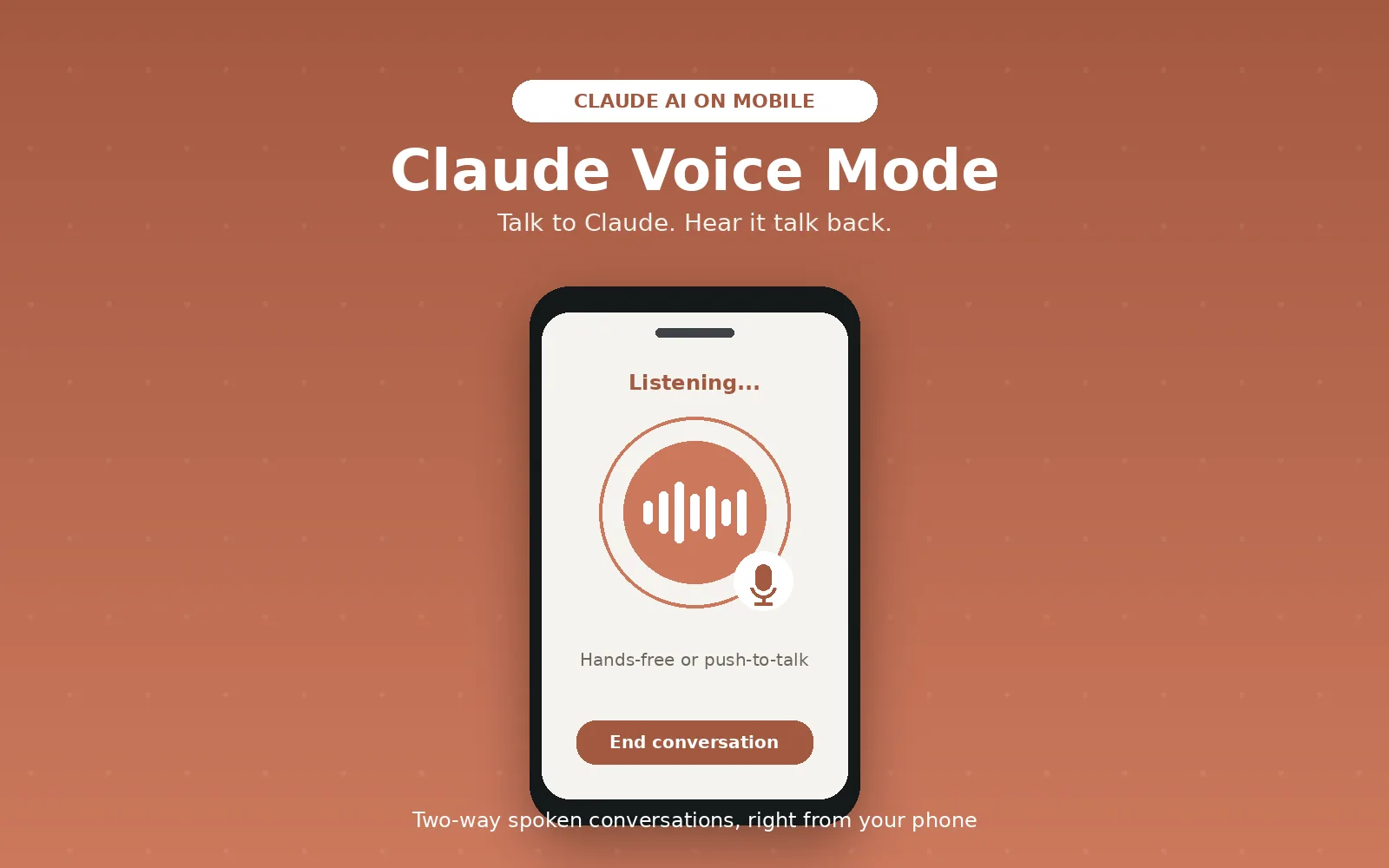
Voice mode turns Claude into a two way spoken conversation partner. Instead of typing a prompt and reading a wall of text back, you speak your question out loud and Claude answers in a natural sounding voice. It is currently a beta feature, and it works across the Claude mobile app on iOS and Android, on desktop, and in the web browser, though it is especially built for phone use since that is where hands-free conversation matters most.
Under the hood, voice mode runs on the same Claude models you already use for text chat, including Sonnet and Opus, so the quality of the answers does not change. What changes is the interface: you talk, Claude listens, and it speaks its response back to you instead of just displaying it.
Why It Is Useful on Mobile Specifically
A phone is the device you are least likely to be typing comfortably on. Voice mode fits situations where typing is awkward or impossible, like walking somewhere, cooking, driving with the phone mounted, or working through a task with your hands full. It also lowers the friction for quick questions. Instead of unlocking your phone, opening the app, and typing out a full sentence, you can just ask.
It is also genuinely useful for anyone who thinks better out loud, or who wants a more natural back and forth for brainstorming, practicing a conversation, or getting a quick explanation without staring at a screen.
How the Two Interaction Modes Work
Claude's voice mode gives you two ways to talk to it.
Hands-free mode is the default. Claude listens continuously and responds automatically once it detects a natural pause in your speech, similar to talking to another person. This works best in a quiet environment where background noise will not get picked up as part of your question.
Push-to-talk mode gives you more control. You hold down a button while you speak and release it when you are done. This is the better option in noisy places, or any time Claude keeps interrupting you or picking up sounds it should not.
You can switch between the two depending on where you are, and both are available on mobile.
How to Use Claude Voice Mode on Mobile
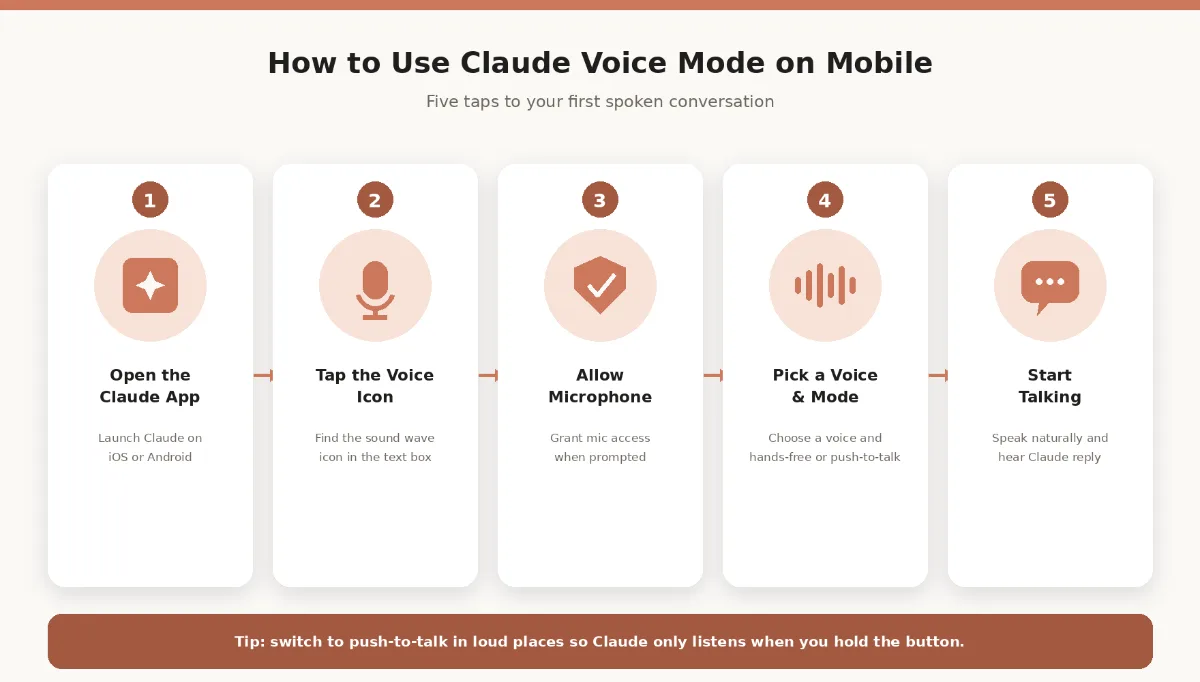
Getting started takes less than a minute.
Open the Claude app on your iPhone or Android device.
Start a new conversation, or open an existing one.
Tap the voice mode icon, the sound wave symbol in the text input field.
Grant microphone access when the app asks for permission.
Choose a voice from the available preset options, and pick hands-free or push-to-talk depending on your surroundings.
Start speaking naturally. Claude will respond out loud, and the conversation continues just like a phone call.
You can preview different voices before settling on one, and you can adjust voice settings at any time from the settings button inside a voice conversation, or from Settings > General in the app.
What Still Works While You Are Talking
Voice mode is not a stripped down version of Claude. If you have connected tools like Gmail, Google Calendar, Google Docs, or Slack, they work the same way in a voice conversation as they do in text chat, within your plan's usual tool limits. That means you can ask Claude to check your calendar or summarize a document out loud without switching back to typing.
Language support extends well beyond English and is also in beta. You can set a preferred language in Settings > General, or simply ask Claude to switch languages mid-conversation.
Limitations Worth Knowing
Voice mode does not currently work with Claude Cowork or Claude Code, so it is meant for general conversation rather than coding workflows. Voice conversations count toward your normal usage limits the same way text conversations do, so extended sessions will use up your quota. Claude Fable is not available as a voice option. If you use Claude through a work or school account, an enterprise admin can also disable voice mode entirely, so it may not appear for everyone.
A Few Tips for a Better Experience
Use push-to-talk in noisy environments rather than fighting with hands-free mode picking up background sound. Make sure your microphone permissions are actually enabled in your phone's settings, since a common cause of voice mode not working is a denied permission. Keep the app updated, since voice features tend to improve with each release. And if you are testing it for the first time, try a quiet room first so you get a clean sense of how it responds before using it somewhere busier.
The Bottom Line
Claude's voice mode turns your phone into something closer to a spoken assistant than a typing interface. It takes a few taps to set up, works with the same tools and models you already rely on, and gives you a genuinely hands-free way to get things done. If you have not tried it yet, open the app and tap that sound wave icon.