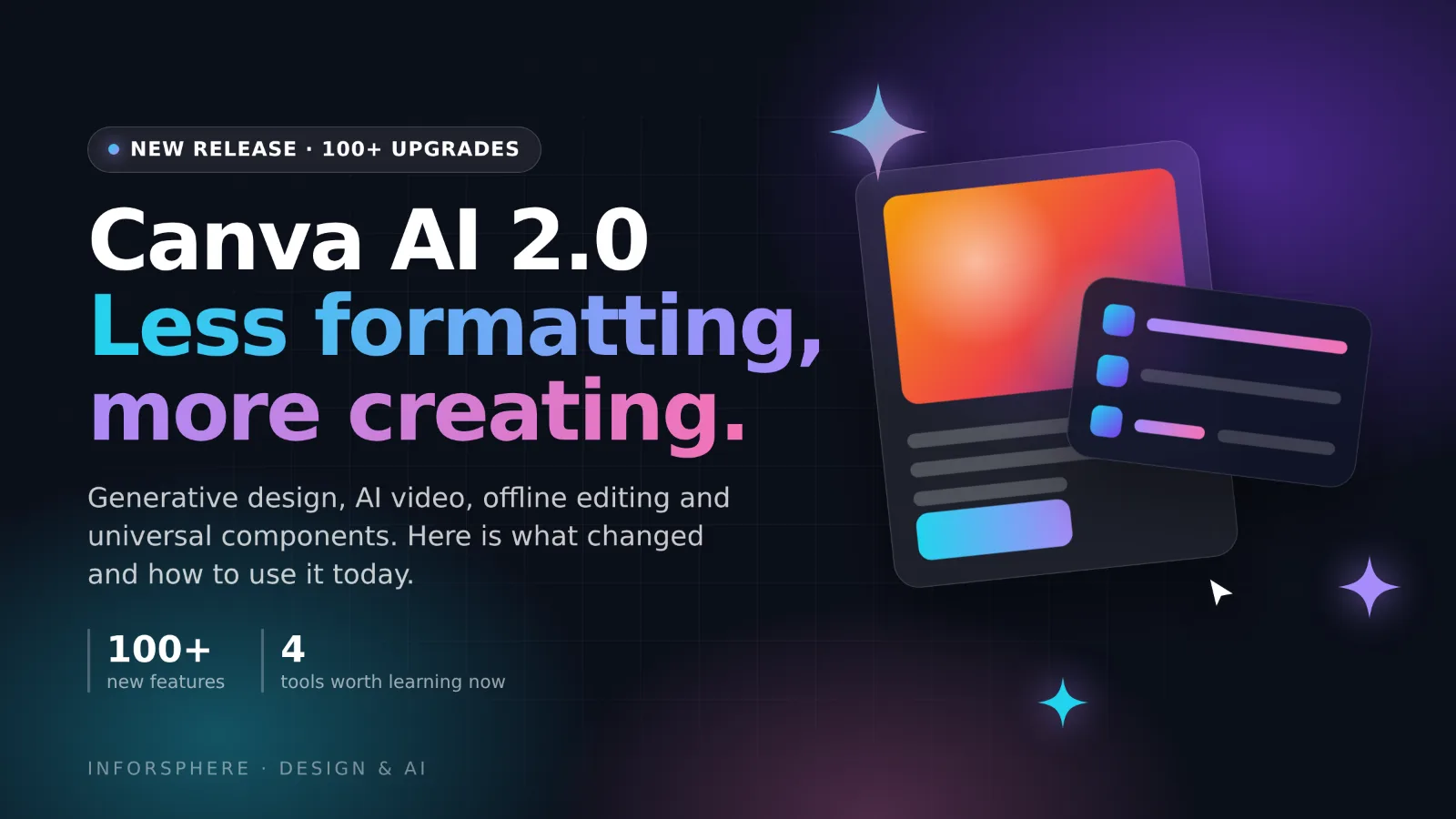
The way we design just changed forever. Canva has officially rolled out its massive AI 2.0 update, packing more than 100 new features, smart upgrades, and workflow automations into its popular Visual Suite.
Whether you are a solo content creator, a social media manager, or part of a massive corporate team, these new tools are built to save you hours of tedious editing. Here is a breakdown of the most powerful new features and exactly how to use them today.
1. Next-Gen Generative Design (Canva AI 2.0)
The headline of this release is Canva's deeply integrated, custom creative foundation model. Instead of just generating basic images, Canva AI now learns your specific brand preferences over time.
The Updates:
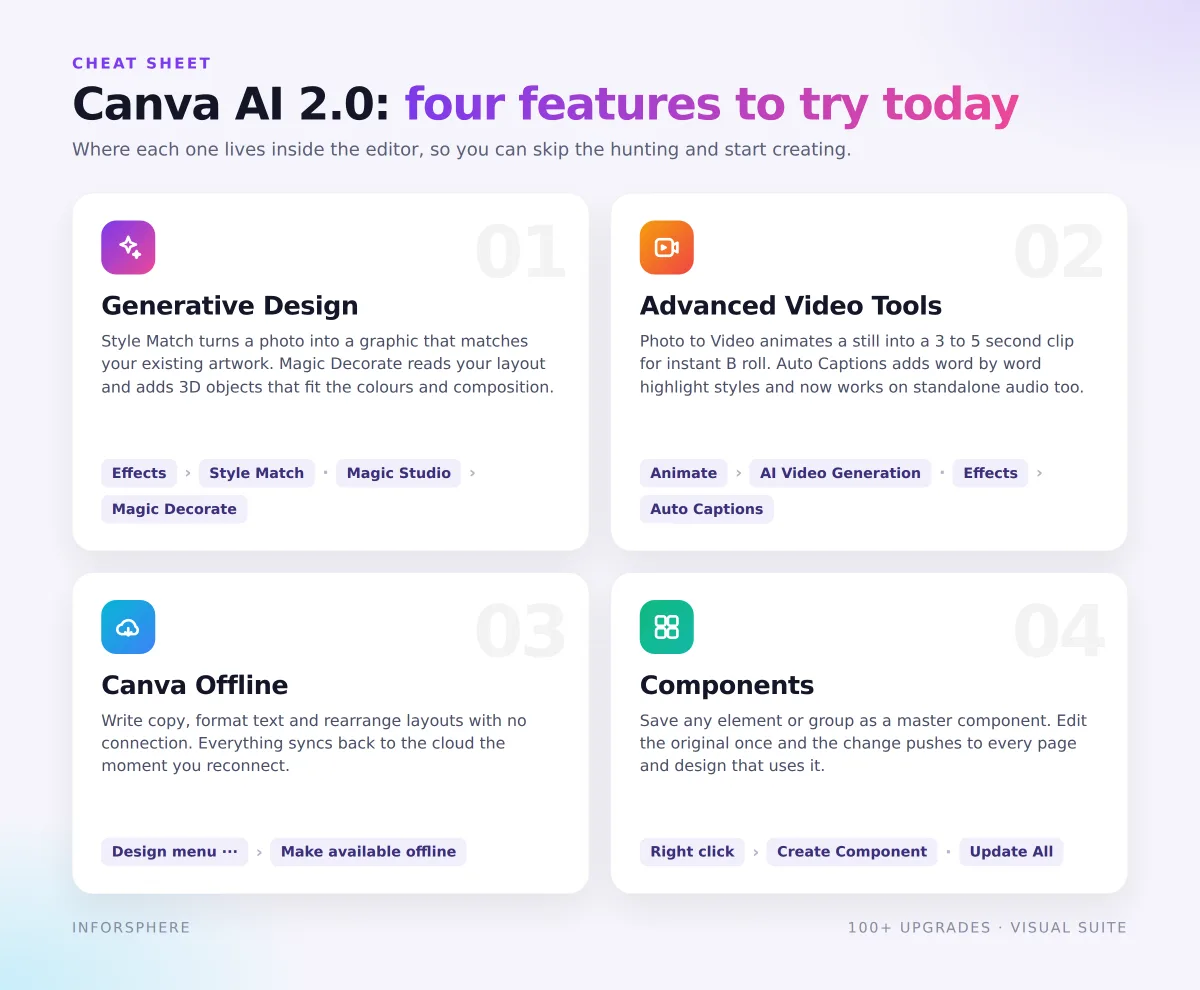
Photo to Graphic (Style Match): Instantly converts a regular photograph into a matching illustration or graphic asset based on an existing style you love.
Magic Decorate: Type a prompt, and the AI reads your layout’s composition and colors to generate 3D objects that fit naturally into your design canvas.
🛠️ How to Use It:
For Style Match: Click on your photo, go to the top editing bar, select Effects, and choose Style Match. Use the eye-dropper tool to click on any graphic on your page, and watch your photo instantly morph into that specific illustration style.
For Magic Decorate: Open your design, go to the Magic Studio tab on the left sidebar, and select Magic Decorate. Click the area on your canvas where you want to add an object, type your prompt (e.g., "add a minimalist ceramic coffee mug"), and click generate.
2. Level Up Your Content with Advanced Video Tools
Video is the undisputed king of social media, and Canva is making it incredibly fast to produce high-quality short-form content for TikTok, Instagram Reels, and YouTube Shorts.
The Updates:
AI Photo-to-Video: Animates flat images into 3-to-5-second high-quality video clips, giving you instant background footage without needing B-roll.
Smart Auto-Captions: Features trendy, word-by-word highlighting styles. Best of all, you can now generate captions for standalone audio tracks and voiceovers, not just video files.
🛠️ How to Use It:
For Photo-to-Video: Select any image on your video timeline. Click Animate from the top menu, and select the new AI Video Generation option. Adjust the motion intensity slider and click Generate Video.
For Auto-Captions: Click on your video or audio track, go to Effects in the top panel, and click Auto-Captions. Select your preferred typography style (like the popular TikTok highlight look) and click Apply. Canva will transcribe the audio automatically in seconds.
3. Work Anywhere with Canva Offline
One of the most requested productivity upgrades is finally here. You no longer need an active internet connection to finish your presentation or edit your graphics.
The Update:
You can now write copy, format text, and rearrange layouts on an airplane or during a laptop-friendly commute. The moment you reconnect to Wi-Fi, Canva will automatically sync your changes to the cloud.
🛠️ How to Use It:
Before you lose internet access, open your Canva dashboard and find the project you want to work on. Click the three dots ... on the design thumbnail (or click the Cloud Icon inside the top menu bar of an open design) and toggle on "Make available offline." A small checkmark will confirm that the project is downloaded locally to your browser or app cache.
4. Universal Updates with "Components"
For anyone managing multi-page documents, presentation decks, or expansive social media campaigns, this feature is a total lifesaver.
The Update:
You can now save any element or grouped layout as a master component. If you update the original component, that change automatically pushes universally to every single layout where it is used.
🛠️ How to Use It:
Select the elements you want to group (like a website footer, social handle, or logo placement). Right-click and choose Create Component. Give it a name. To use it elsewhere, drag it from your Assets tab into any page. If you ever need to change it, simply double-click any instance of that component, make your edit, and click Update All on the popup prompt.
Final Thoughts: Time to Start Creating!
Canva AI 2.0 bridges the gap between professional-grade design software and effortless, intuitive creation. By combining these powerful updates with a clear plan on how to execute them, you can scale your creative output without sacrificing your sanity.
Log into your Canva dashboard today, look for the new feature badges, and start experimenting!